Docs
How to set up a radio, manage your account, read the board and the results page, and fix the common problems. This is the how-to reference, not the rulebook -- for how scoring, capture and the honors actually work, see Rules.
Getting started
MeshWars is a real-world team game played over mesh radio. Seven teams claim roughly 300-meter map squares by physically carrying a radio into one and reaching the mesh from inside it, and the map keeps shifting as players spread out, defend what they hold, and lose ground to rivals. A season runs six months, but every calendar month inside it closes with its own separate result, so there is always something close to play for.
The fastest way to get playing:
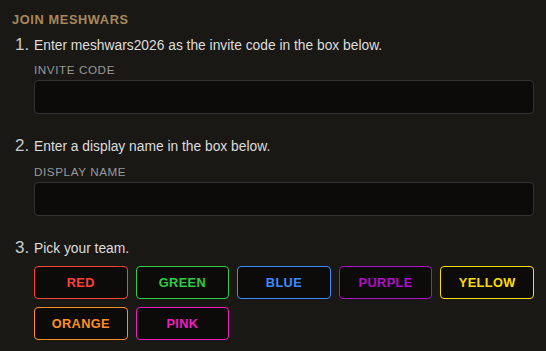
- Go to the join page and enter your invite code, a display name, and pick one of the seven teams.
- Choose which radio's setup steps to see first -- MeshCore or Meshtastic. You can register both eventually; this only picks which instructions show first.
- Follow the numbered steps for your protocol (below) to point your radio at MeshWars.
- Copy your API key before you leave the page. It is shown exactly once.
- Get outside somewhere with mesh coverage and transmit. The first ping that reaches a repeater or a feeder claims your first square.
Once you're set up, the same join page's setup-check panel is where you come back to check your status, add or remove radios, or switch teams -- see Your account.
Setting up MeshCore
MeshCore players don't send anything to MeshWars directly. Instead, MeshMapper -- the wardriving app MeshCore players already use to map repeater coverage -- forwards a copy of what it collects to MeshWars. This does not replace MeshMapper or change what it does for you; your coverage data, points and leaderboard standing there are unaffected. This works anywhere MeshMapper works -- MeshCore painting on MeshWars isn't limited to any particular community.
On the join page, with MeshCore selected, you can optionally search for your node up front so it's bound to your account from the moment you register:
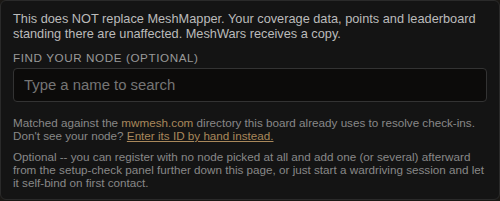
This step is genuinely optional. If you skip it, your first wardriving session binds your radio to your account automatically -- see below.
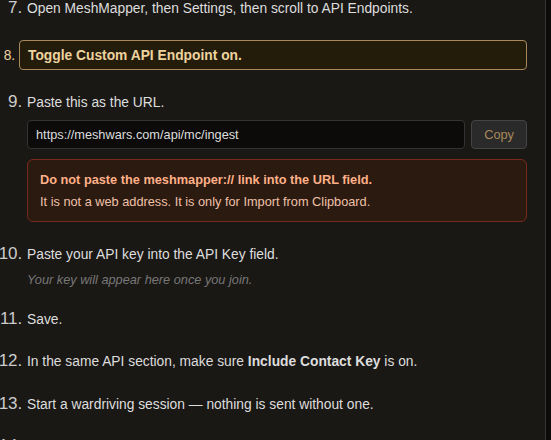
After you join, the numbered steps walk you through pointing MeshMapper at MeshWars:
- Open MeshMapper, then Settings, then scroll to API Endpoints.
- Toggle Custom API Endpoint on.
- Paste
https://meshwars.com/api/mc/ingestas the URL. Do not paste themeshmapper://link here -- that one is only for Import from Clipboard, not a web address. - Paste your API key into the API Key field, then save.
- In the same API section, make sure Include Contact Key is on. This is the single most common reason a MeshCore player sees nothing happen: without it, MeshWars never learns which radio the batch came from, so nothing can be credited to you.
- Start a wardriving session. Nothing is sent to MeshWars between sessions.
If you skipped picking a node at registration, your radio binds itself the first time a wardriving batch reaches MeshWars with your contact key attached -- no extra step needed. A radio only ever belongs to one player: if a contact already registered to somebody else turns up under your key, that ping is dropped rather than credited to either of you.
MeshMapper sends a batch roughly every fifteen to thirty seconds while a session is running. Squares are only claimed where your radio actually hears a repeater -- driving somewhere with no coverage logs your position and claims nothing, which is normal, not a fault. For the scoring itself, see Claiming a square.
Setting up Meshtastic
Meshtastic works the other way around from MeshCore: nothing is ever pushed to MeshWars directly. Instead, FreqMapper -- a separate Meshtastic coverage-mapping app -- verifies where your radio is actually heard, and MeshWars reads that coverage to paint your square. There is no MeshWars session or batch here; your radio just needs to be enrolled and mapping through FreqMapper. Registering with MeshWars (below) and setting up FreqMapper are two separate things -- both are required.
On the join page, with Meshtastic selected, register your node ID (found by searching, or entered by hand) and optionally its public key -- the key is what lets MeshWars keep following your radio if its node ID ever changes. Then, to actually get mapped, set up FreqMapper itself:
- Install FreqMapper -- iOS through its TestFlight beta, Android from the APK at dev.freqmapper.net.
- Enroll in a mapping region using an enrollment key from a region administrator. See FreqMapper's enrollment guide for how to get one and what a stale or already-used key looks like.
- In the app's Radio tab, connect your Meshtastic radio over Bluetooth and let it fully sync before applying the enrollment key.
- Set up the shared wardriving channel once your key is applied and the radio shows connected. FreqMapper adds this on an open secondary channel slot without touching any channel you already have -- do this and the rest of your setup is otherwise unaffected.
- Before your first trip, confirm the app shows both your radio and your location as ready. See FreqMapper's first-mapping-trip guide for everything it checks.
Full setup instructions, including iPhone and Android screenshots, live on FreqMapper's own help site -- start at Getting Started.
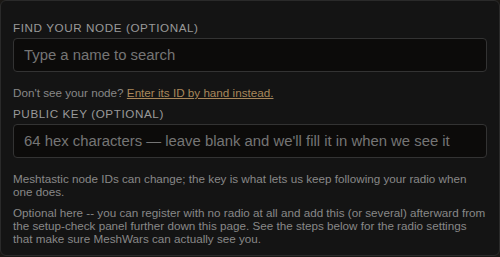
A Meshtastic node cannot self-bind the way a MeshCore contact can -- the coverage data MeshWars reads carries nothing that points back to you, so registering it here is the only way it ever gets attached to your account.
Your account
Everything below lives in one place: the setup-check panel near the bottom of the join page. Paste your API key and press Check to unlock it -- the same panel handles checking your status, reading your diagnostics, adding or removing radios, switching teams, and (MeshCore only) confirming a node that isn't matching on its own.
Checking your setup
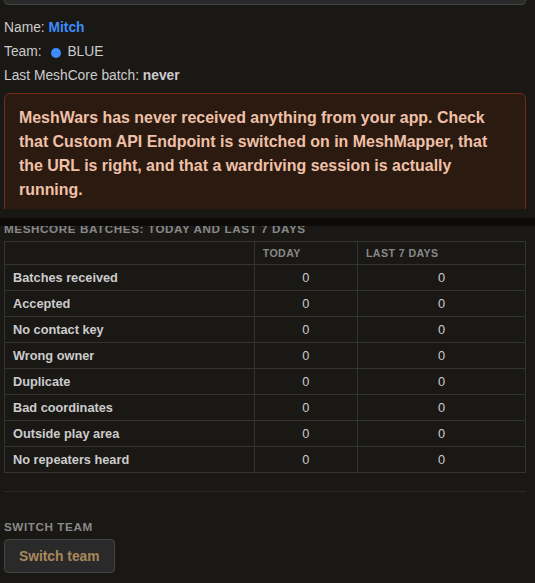
Once your key checks out, you'll see your name and team, and -- for each protocol you have a radio registered on -- when MeshWars last heard from you and a plain-language diagnosis of what, if anything, is wrong.
Reading the diagnostics counters
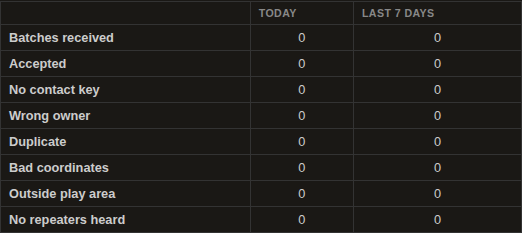
Below the diagnosis is a table counting every batch or ping MeshWars has seen from you today and over the last 7 days, broken out by what happened to it. On MeshCore:
| Batches received | every batch MeshMapper sent, whatever happened to it |
|---|---|
| Accepted | scored and counted toward a square |
| No contact key | Include Contact Key was off, so the batch couldn't be attributed to any radio |
| Wrong owner | the contact key belongs to a different player's registered radio |
| Duplicate | already scored -- the same repeater within the per-repeater cooldown, see Troubleshooting |
| Bad coordinates | no usable position in the batch |
| Outside play area | the position fell outside the bounded play area |
| No repeaters heard | a real position, but the radio didn't hear any repeater from there |
Meshtastic's table is shorter -- Accepted, Duplicate, Bad position, Outside play area, and No feeder heard -- because a Meshtastic ping has no batch concept and no contact key to get wrong.
Adding and removing radios
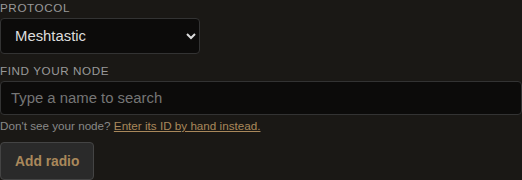
Your radios list shows every radio registered to you, on either protocol, each with a Remove button. Underneath it, pick a protocol, search for your node (or enter its ID by hand), and press Add radio. This works any time, not just at signup -- it's how you register a second radio, or a Meshtastic node you didn't have handy when you first joined.
Switching teams
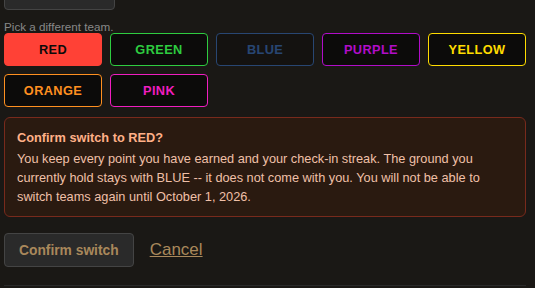
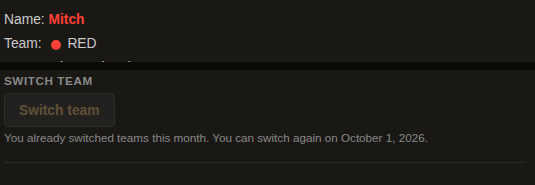
You can switch to a different team yourself, once per calendar month, from this same panel. Only you move -- any squares you're currently holding stay with the team you're leaving, exactly as if a teammate had painted them, while every point you've earned and your check-in streak come with you. The confirmation step spells out both halves of that, plus the exact date you'll be able to switch again, before anything is submitted.
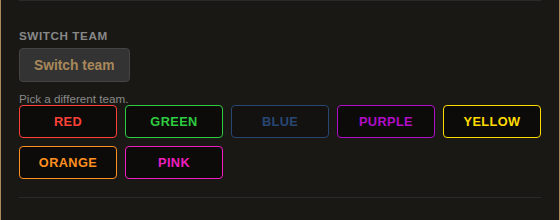
Press Switch team to open a picker of the other six teams (your current one is shown but disabled):
Pick a team and a confirmation box appears, naming exactly what you keep and what stays behind:
Once you've switched, the control locks until the first of next month, and says so plainly rather than just disappearing:
Confirm my node
Net check-ins are matched to a player automatically: on Meshtastic by your registered node ID, on MeshCore by your registered contact, which your net's own directory resolves to whatever name your radio currently posts under. Most players never need to touch anything here.
"Confirm my node" in the Radios & troubleshooting panel proves a specific radio is yours directly, without waiting on anything to catch up on its own. Pick your radio type from the dropdown at the top of the panel first -- MeshCore or Meshtastic -- since the two prove possession in different ways, matched to what each protocol's messages actually carry:
- MeshCore: useful if your contact isn't in your net's directory yet, so check-ins can't be matched that way. Type the name your radio currently shows on the mesh and press Confirm my node, then go trigger an advert on that same radio (most MeshCore devices send one from a long-press of the side button, or a "Send Advert" / "Flood Advert" menu item). MeshWars watches the mesh for five minutes and shows you every node it heard advertising under that name -- pick yours from the list, and we bind its public key to your account. From then on your check-ins match on that key, not the name, so a later name change on the radio won't break it again.
- Meshtastic: useful if a radio isn't registered yet, or you want to prove a specific node is really yours before it's bound. Select Meshtastic and press Confirm my node -- no name to type here, since Meshtastic messages already carry your radio's real node ID. We hand you back a short code (something like
mw-3h7fpk4), shown large enough to read at a glance with a Copy button next to it. Send that exact text as a message on your mesh, on any channel -- it's fine if it's part of a longer sentence. MeshWars watches for a message containing that code for five minutes and shows you which node it came from -- confirm it's yours, and we bind that node ID to your account.
Either way, a radio already bound to somebody else's account can't be claimed this way -- if you see that error, it means the radio is already registered, most likely to whoever owns it.
A lost key
Your API key is shown exactly once, at registration -- MeshWars stores only a one-way hash of it, so nobody, including an operator, can ever look the raw value back up.
- MeshCore: your key is still sitting in MeshMapper. Open Settings, then API Endpoints, and read it back out of the API Key field.
- Meshtastic: nothing on the radio or in the app ever stores your key. Ask an operator for a new one -- see the About page for how to reach the community running your net.
A brand new key doesn't disturb your account, your points, your team, or any radio you already have registered -- it's only a new way in.
Reading the board
The map at meshwars.com is the live board. The first time you load it you'll be asked which board to look at -- MeshCore or Meshtastic -- and you can switch between them any time from the two buttons at the top of the score panel.
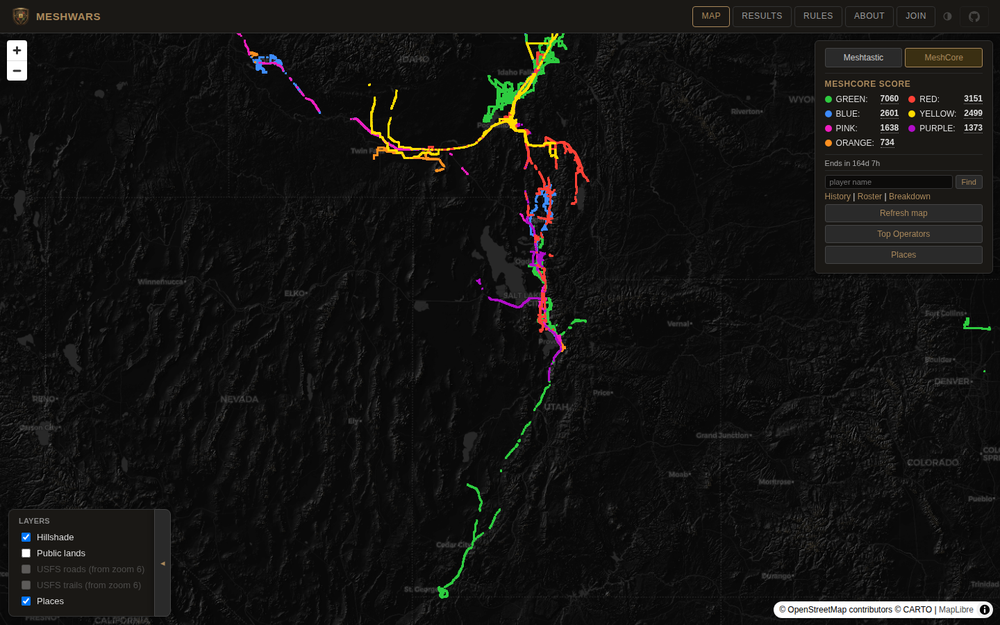
The score panel
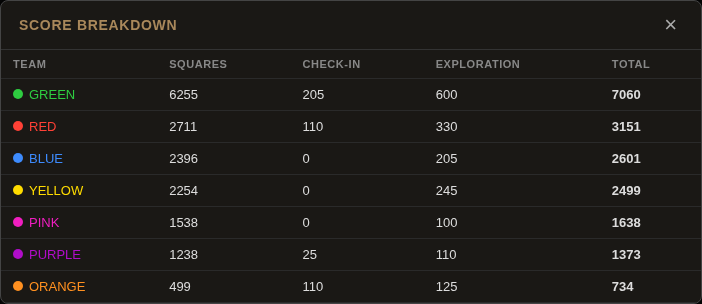
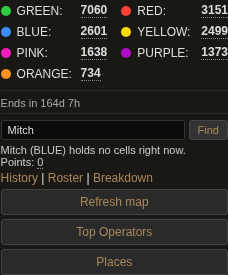
The panel in the top-right corner is the hub for almost everything on this page. Each team's number is its full standing -- squares held, plus check-in points, plus exploration points, all added together and simply labeled Score. Click any team's number to toggle it to the compact breakdown (squares+check-in+exploration) and back; the countdown underneath shows how much of the current season is left.
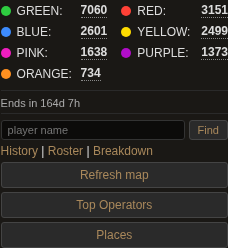
On a narrow screen the panel starts collapsed to its title bar; tap the bar to expand or collapse it.
History
Opens a list of past, fully-completed seasons -- not months. A season is six months long, so this can genuinely read "No completed seasons yet" even while the results page already shows several closed months; those are two different things. See Reading the results page for monthly results.

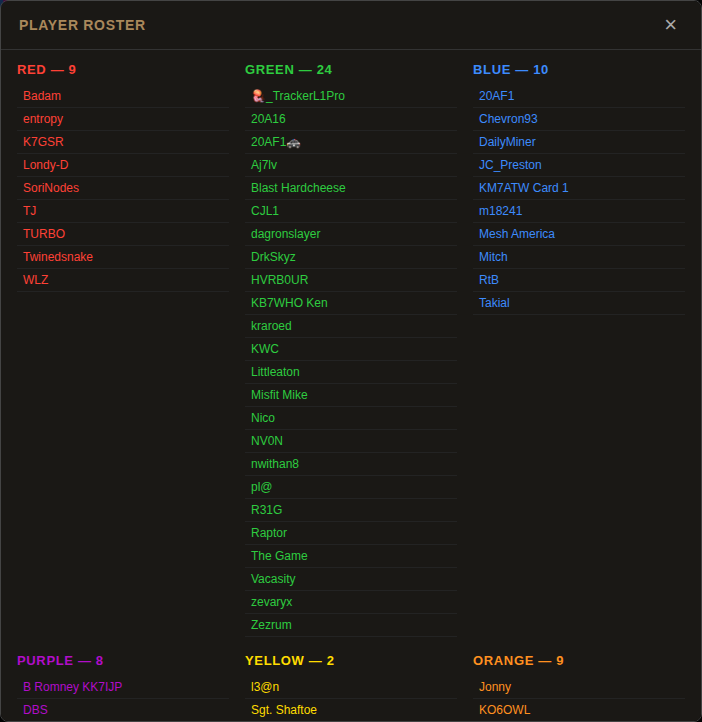
Roster
The full player list, grouped by team.
Breakdown
The same three figures behind each team's score, laid out as a table: squares, check-in points, exploration points, and the total.
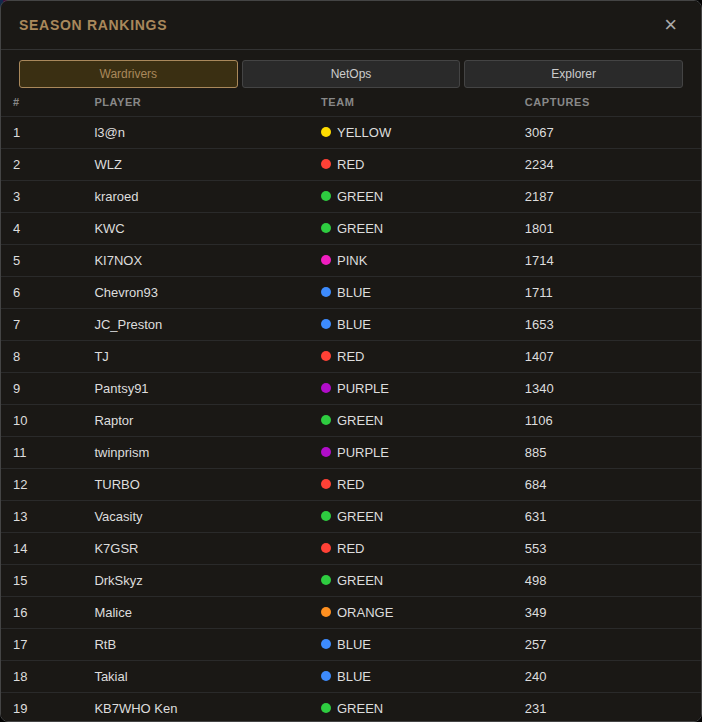
Top Operators
Season-long player rankings across three tabs: Wardrivers (ranked by captures), NetOps (check-in points) and Explorer (Places Worth Going points). These are player rankings, not a monthly honor -- see Places Worth Going for what Explorer actually measures.
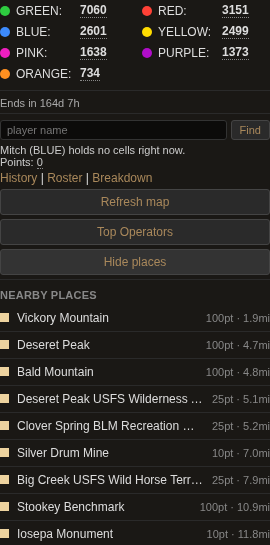
Places
Unlike the four above, Places isn't a modal -- it expands in place underneath the other buttons. It lists live places near wherever the map is currently centered, nearest first, each with its point value and distance. For what makes a place worth going and how the weekly rotation works, see Places Worth Going in the rules.
The layers panel
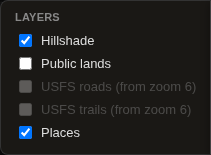
The panel in the bottom-left corner controls what's drawn on the map underneath the squares: hillshade, public lands, USFS roads, USFS trails, and place markers. USFS roads and trails only draw in from zoom level 6 -- greyed out at a wider view is expected, not broken. On the map itself, a tab on the panel's right edge slides the whole thing off-screen and back; your choice is remembered on that device.
Finding a player
Type a name into the player-search box and press Find. If they hold any squares, the map jumps to fit around their ground; either way you'll see their team, how many squares they currently hold, and their point total (tap it for the same breakdown the team totals use).
A square's popup
Click any painted square to see: which team owns it and when it was captured; every team's current score there; the most recent captures (who, for which team, and when); and, if the radio side of it has anything recorded, which repeaters or feeders were heard there and when each was last heard. A square sitting inside a named park or landmark also shows that place and its point value.
Reading the results page
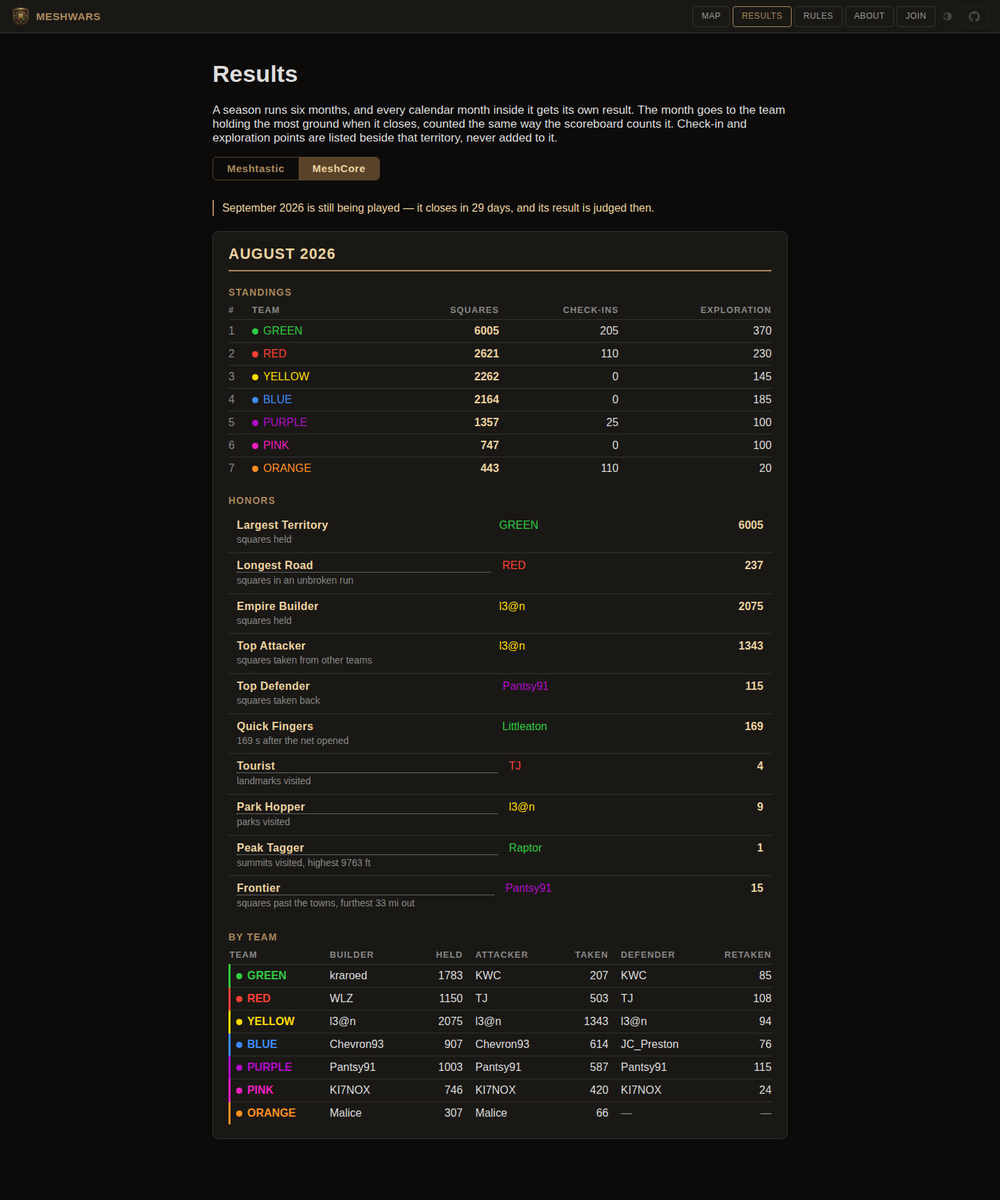
The results page lists every calendar month that has actually closed, newest first, one board at a time via the same Meshtastic/MeshCore toggle the board page uses.
Frozen and in-progress months
The month you're currently in never gets its own card -- only a one-line note saying how many days remain before it closes. A month you can watch changing hands daily isn't a result. The instant a month ends it gets a full card -- standings, honors, and a by-team breakdown -- and that card is frozen: it renders exactly the same every time afterward, it never quietly reshuffles.
The three columns
Each team's standing shows three separate numbers: Squares (what the team held the instant the month closed), Check-ins (check-in points earned that month), and Exploration (Places Worth Going points earned that month). These are never added into one figure on this page -- they're three different kinds of contribution, shown side by side rather than summed. (The board's own score panel, unlike this page, does add all three into one total -- see The score panel.)
The honors
Every honor is listed every month, whether or not anyone won it -- an honor nobody earned reads "not awarded" rather than vanishing, so it doesn't look like a missing feature. For what each honor actually measures, see The honors in the rules.
Five of the eleven honors -- Longest Road, Frontier, Tourist, Park Hopper and Peak Tagger -- are clickable links. Following one opens the board with that month's shape drawn on the map: Longest Road draws the winning chain, Frontier draws every qualifying square with the furthest one ringed, and the three exploration honors drop a point on every place that counted. The rest (Largest Territory, Empire Builder, and the attack/defense honors) aren't linked, because there's no single shape to draw for "held the most ground" across thousands of scattered squares.
Troubleshooting
Organized by what you're seeing, not by what's causing it -- start with the line that matches your screen.
- Nothing is happening
-
Start with the setup check: paste your key into the panel at the bottom of the join page and press Check. It tells you when MeshWars last heard from you and, if something's wrong, what.
MeshCore: confirm a wardriving session is actually running in MeshMapper -- nothing is sent between sessions -- and that Custom API Endpoint is toggled on with the right URL and your key saved.
Meshtastic: there's no MeshWars session to start here. Confirm FreqMapper shows your radio synced and enrolled with the shared wardriving channel set up, and that you've actually started a mapping trip in the app -- see FreqMapper's first-mapping-trip guide. If FreqMapper looks right and you're still seeing nothing on MeshWars, confirm your node ID is registered on the join page -- an unregistered node has nothing to attach a square to.
- It says no repeaters heard
-
Your position is real and was recorded, but your radio didn't hear a single repeater from where you were standing -- this is normal, not a bug. Reaching the mesh is the whole point: a ping from a dead zone is logged and claims nothing. Try a spot with better line of sight, or check the board for where other players are already painting nearby.
- My pings are being discarded
-
Check which counter is climbing in your diagnostics table (see Reading the diagnostics counters) -- it tells you exactly why:
- Duplicate usually just means the cooldown: the same repeater won't pay out again for five minutes, but that cooldown is per repeater, not per square -- a genuinely new repeater heard on the same visit, even seconds later, still scores. Standing still and repeatedly transmitting to the same repeater is what this catches.
- No contact key (MeshCore) means Include Contact Key is off in MeshMapper's API settings -- turn it on.
- Wrong owner means that contact or node is already registered to a different player. A radio only ever belongs to one account.
- Bad coordinates or Bad position means there was nothing usable to place you anywhere at all.
- Outside play area means the position fell outside MeshWars' bounded play area (the western US and Texas) -- see the outline on About.
- I lost my key
-
See A lost key under Your account -- MeshCore players can read it back out of MeshMapper; Meshtastic players need a new one from an operator.
- My check-in did not count
-
A check-in only counts if an operator has configured a net for your mesh community in the first place, and it resolves to a registered player. On Meshtastic that means your registered node ID. On MeshCore it means your registered contact resolves through your net's own directory, or you've confirmed the radio directly (see Confirm my node). It also has to land inside your net's own window -- posting before or after it doesn't count, and posting more than once in one net only ever credits the first. Check the local net's published channel and times; see the About page for which communities currently have one configured.
- I am painting the wrong square
-
This is almost always a phone location-permission setting in FreqMapper, not a MeshWars bug -- MeshCore has no equivalent setting to get wrong. Squares are about 300 meters across, and FreqMapper's own setup requires precise (not approximate) location permission to place a mapping test accurately -- check that under your phone's location settings for the app.
What changed recently
Player-visible changes, newest first. The full history lives in the repository's CHANGELOG.md.
- 2026-09-02 The board's score figure now includes exploration points, and is labeled Score rather than Territory. Each team's number in the score panel is squares held plus check-in points plus exploration points, added together -- click it to see the breakdown. Players can also now switch teams once a month from the setup-check panel; see Switching teams.
- 2026-08-27 The layers panel can now be put away. A tab on its right edge slides it off-screen and back; your choice is remembered on that device.
- 2026-08-27 A square carrying more than one place now pays out for the single most valuable one only, not every place stacked on it. The weekly point cap pays out the remainder rather than refusing you outright once you're close to it.
- 2026-08-25 Places Worth Going launched: summits, parks and landmarks now earn Explorer points on top of the usual square-claiming game. See Places Worth Going in the rules.